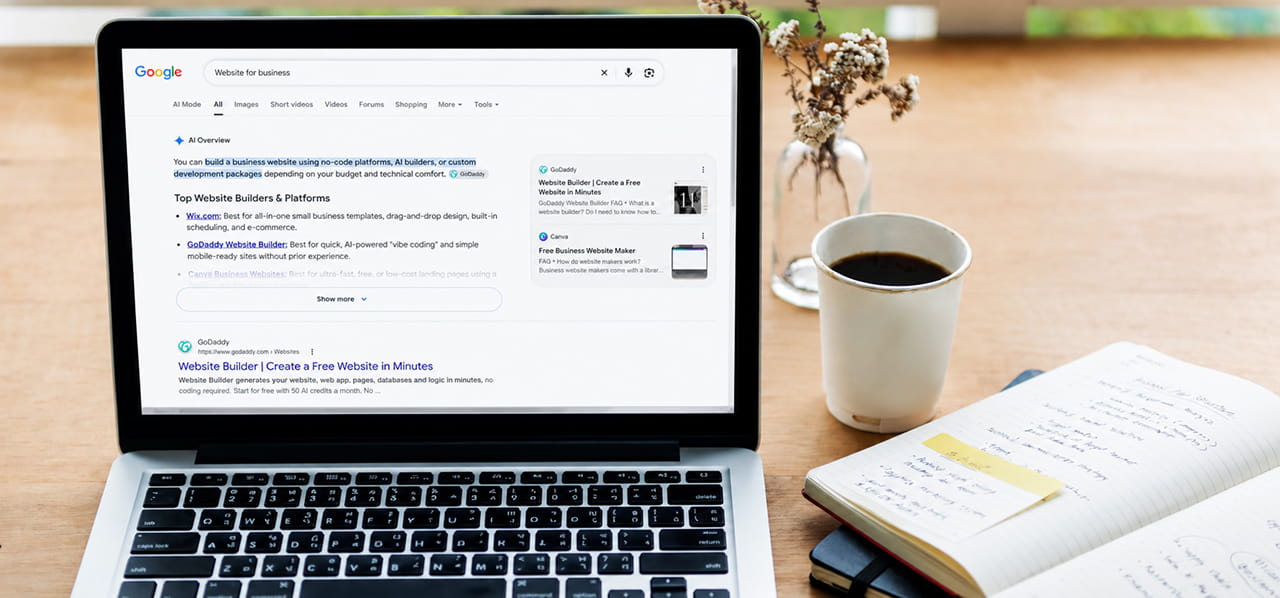
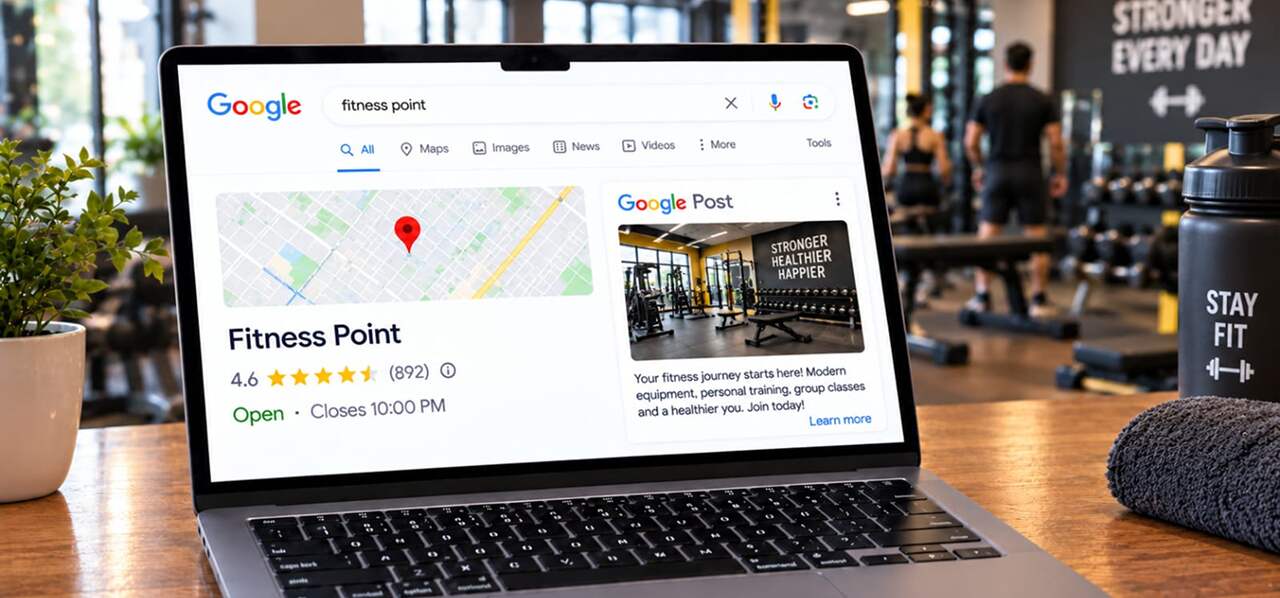
When someone searches for your shop, clinic or service on Google, your Business Profile is often the first thing they see. Google Business Profile posts are short updates you can add to that profile, such as a new service, a festival offer or an upcoming event. They cost nothing and take a few minutes. They are also a simple part of a good digital marketing routine, because they let you speak to customers right where they are already looking at you.
This guide walks you through creating, scheduling, editing and managing posts, based on Google’s own help pages.
What Are Google Business Profile Posts?
Google Business Profile posts are small announcements that appears on your profile in Google Search and Google Maps. Think of it like a notice board outside your shop, except it shows up when people find you online.
Where it appears, according to Google’s help page:
- On mobile, in the “Updates” or “Overview” tab of your profile.
- On desktop, in a section called “From the owner”.
The Three Types of Google Business Profile posts
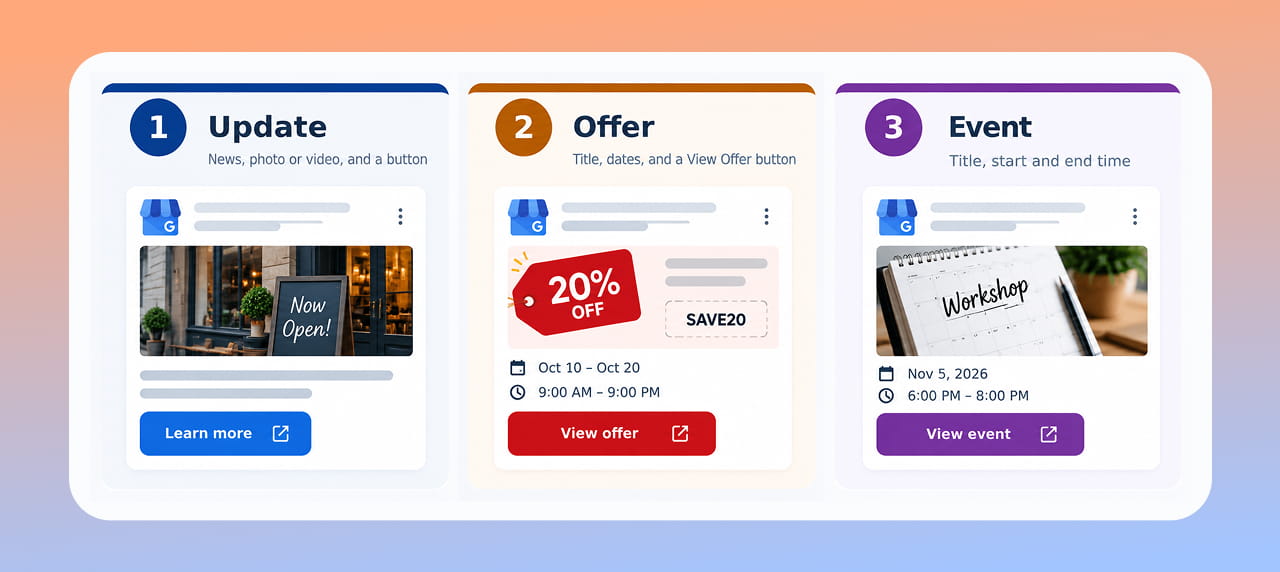
The three post types you can choose from.
- Update. Share news about your business. You can add a description, a photo or video and a button that links to a page where customers can book, order online or learn more.
- Offer. Promote a sale or deal. It needs a title, dates and times, and automatically includes a “View Offer” button. You can also add a coupon code and terms and conditions.
- Event. Promote something happening at your business, like a workshop or open house. It needs a title and start and end dates and times. If you leave out the times, Google shows the event as lasting 24 hours on those dates.
How to Create a Post, Step by Step
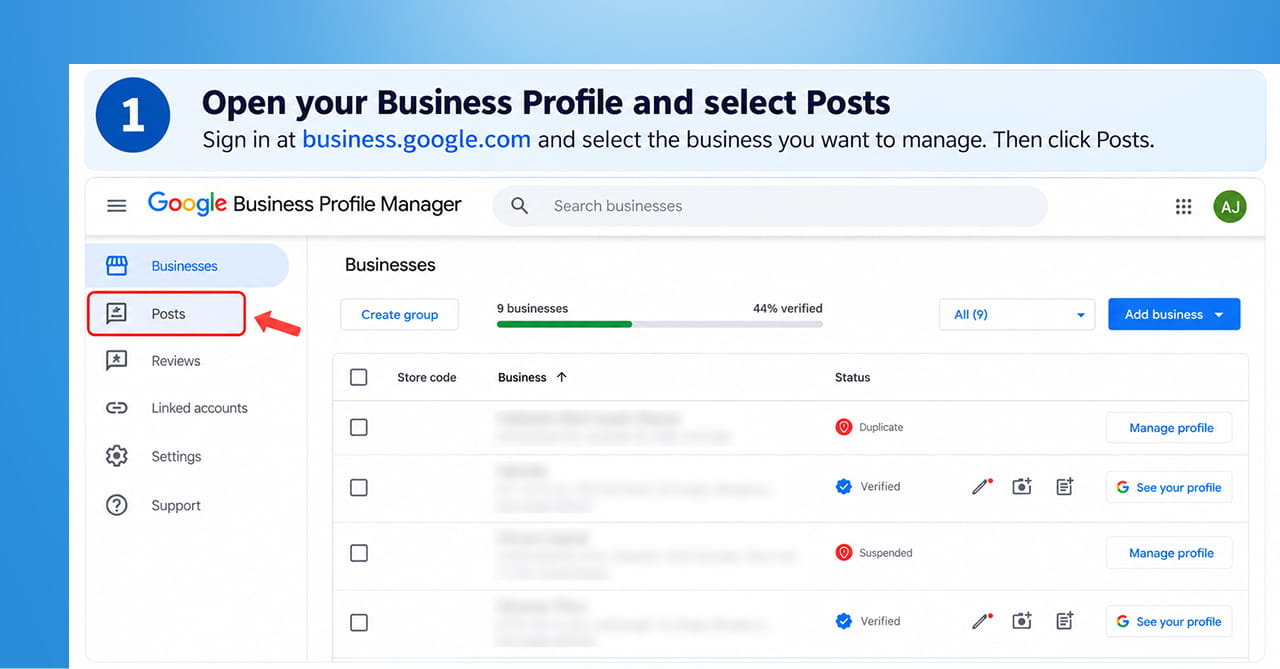
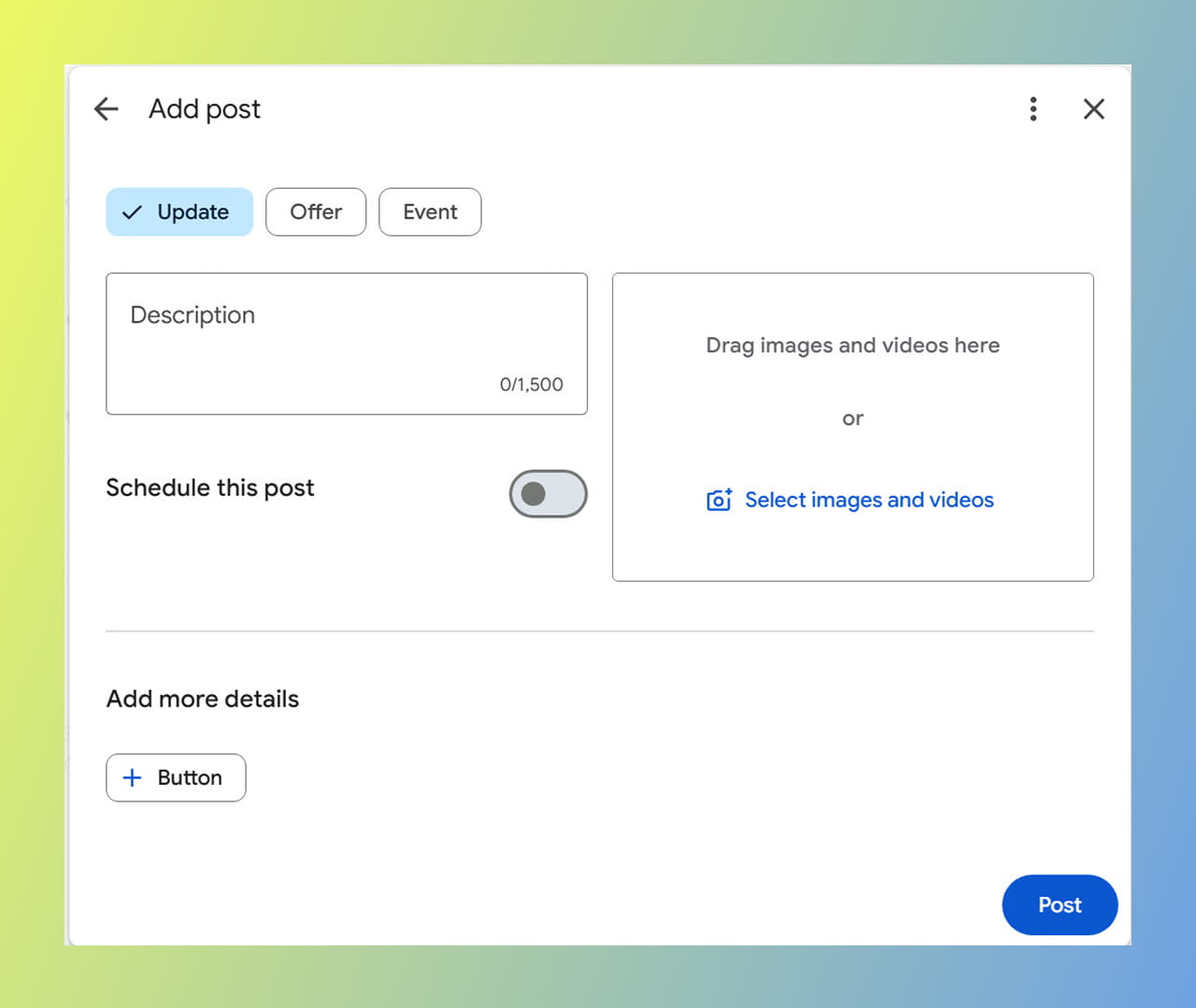
The five steps to publish a post.
- Open your Business Profile and select Posts. You can sign in through business.google.com.
- Click Add post.
- Choose the post type: Update, Offer or Event.
- Add your details. Write your text, add a photo or video, and add a button or coupon code if you want one.
- Click Post. If you manage several locations, you can choose which profiles to share it to, or select Skip to post to just one.
Schedule Posts So You Do Not Forget
You do not have to post on the day you write. When you create a post, you can turn on Schedule this post and pick a date and time. There is also a Repeats drop-down for posts that should come back on a schedule, such as a weekly special.
A good habit: sit down once a month, write four short posts and schedule them.
How to Edit or Delete a Post
Posts are not set in stone. Google says you can edit or delete a post after you publish it:
- Open Posts in your profile.
- Click More next to the post.
- Choose Edit or Delete.
This is handy when an offer ends early, a date changes or you spot a typing mistake.
What the Post Statuses Mean
After you publish, Google checks the post against its content policy. You will see one of three statuses:
- Live: the post is public and showing on Search and Maps.
- Pending: it is not visible yet, either because it is still uploading or processing, or because your profile is not verified.
- Not approved: it breaks a content policy and is not visible. A question mark next to it tells you which rule was the problem.
Posts do not last forever. Google archives posts older than 6 months unless you set a date range for them.
What Should You Write About?
Keep it simple and useful. A few ideas, using made-up examples:
- New service or product: “Now offering weekend appointments.”
- Festival offer: “Festival special: ₹500 off on your first service this week.” Use the Offer type so it gets the View Offer button and dates.
- Event: “Free skin check camp this Saturday, 10 am to 1 pm.”
- Behind the scenes: a photo of your team or your latest work.
A few tips that help any post:
- One idea per post. Do not cram in everything.
- Use a clear photo of your real business, not a blurry image.
- Use one button that matches the goal, like booking or learning more.
- Write in plain words, the way you would speak to a customer.
Google’s help page does not publish exact character limits or image sizes, so follow what the post form allows and keep your text short.
Rules That Can Get a Post Rejected
According to Google’s posts content policy and its help page, watch out for these:
- Phone numbers and contact details. Posts with unverified phone numbers, emails or social media handles may be removed. Instead, add a Call now button, which uses the verified phone number on your profile.
- Links. Only link to trusted websites. Malware, phishing or adult links are not allowed.
- Regulated products. Businesses in areas like alcohol, tobacco or financial services can post, but cannot include content about those products.
- Tone. Keep posts professional, respectful and family-friendly, with no spelling mistakes or offensive content.
- Hotels. Hotels cannot create offer posts or mention deals and discounts in posts.
Keep Offers in Posts, Not in Your Business Description
Here is a mistake many businesses make. Google’s guidelines for business descriptions say your description should not focus on special promotions, prices or sales. Their example of what not to write is “Best bagels in town for $5!” The description field also does not allow links.
So keep your main description timeless, and put time-limited deals in a post, where they belong.
New: Posts May Be Getting More Attention
Google moved posts to the bottom of the local panel in 2018. This month, local SEO specialist Ben Fisher reported that posts seem to be testing a higher position, and said he saw them moving up and down every few days. Google has not announced this, so treat it as a test and not a promise. Either way, a profile with fresh posts looks active and cared for.
A Simple Monthly Routine
- Pick four ideas for the month, like a service, an offer, an event and a team photo.
- Write short posts and schedule them in one sitting.
- Check statuses a few days later, and fix anything marked Not approved.
- Edit or delete posts that are out of date.
- Make sure the website your buttons point to is clear and mobile-friendly. A tidy website design turns a click from your post into an enquiry.
Quick Takeaways
- Google Business Profile posts are short updates that appear on your profile in Search and Maps.
- There are three types of Google Business Profile posts: Update, Offer and Event.
- Create one from your profile: Posts, Add post, choose a type, add details, Post.
- You can schedule, repeat, edit and delete posts, and posts older than six months are archived.
- Avoid unverified phone numbers, unsafe links and regulated products, and keep deals in posts, not in your description.
Want Help Keeping Your Business Profile Active?
If you would like help setting up Google Business Profile posts, planning a monthly schedule or tidying your whole profile, get in touch through our contact form and we will help you get started.